You can download Threads videos on a PC, laptop or Mac with nothing but the browser you already use. Chrome, Edge, Safari and Firefox all handle it the same way: open the post on threads.com, copy its link, paste it into the Snapvn Threads downloader and save the MP4. There is no extension to add, no program to install and no account to create.
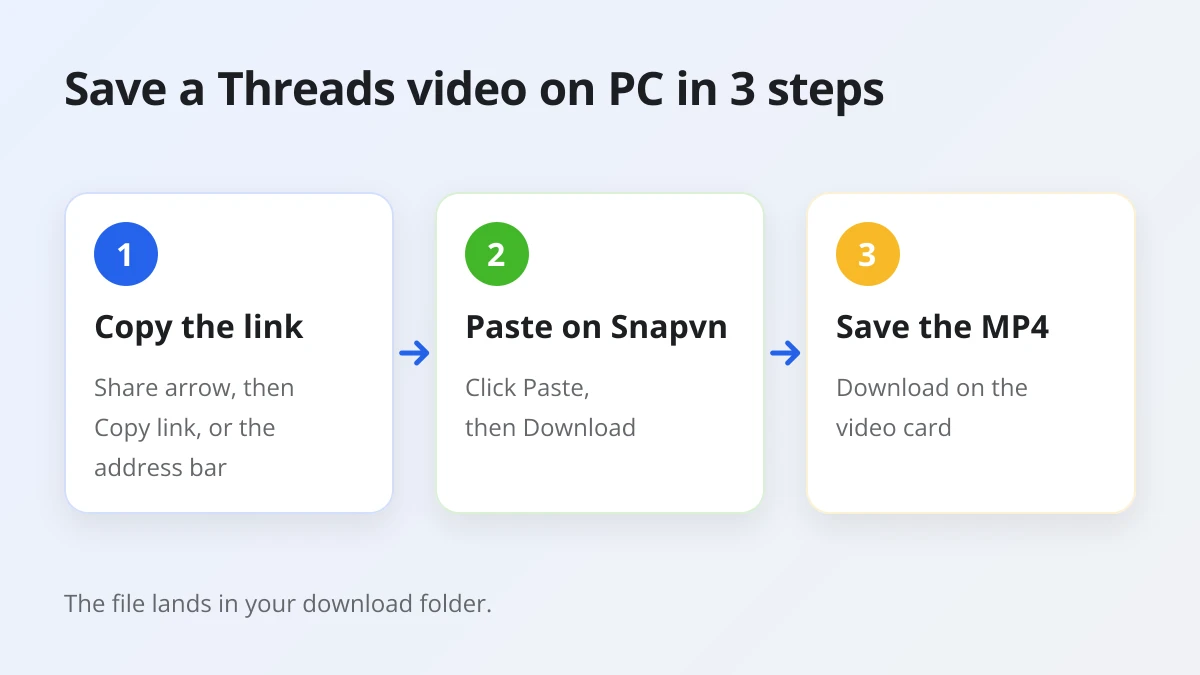
The whole process takes three steps. First, copy the link of one public post from the Share arrow or the address bar. Next, paste it on Snapvn with the Paste button and press Download. Finally, press Download on the video card, and the browser saves the file like any other download.
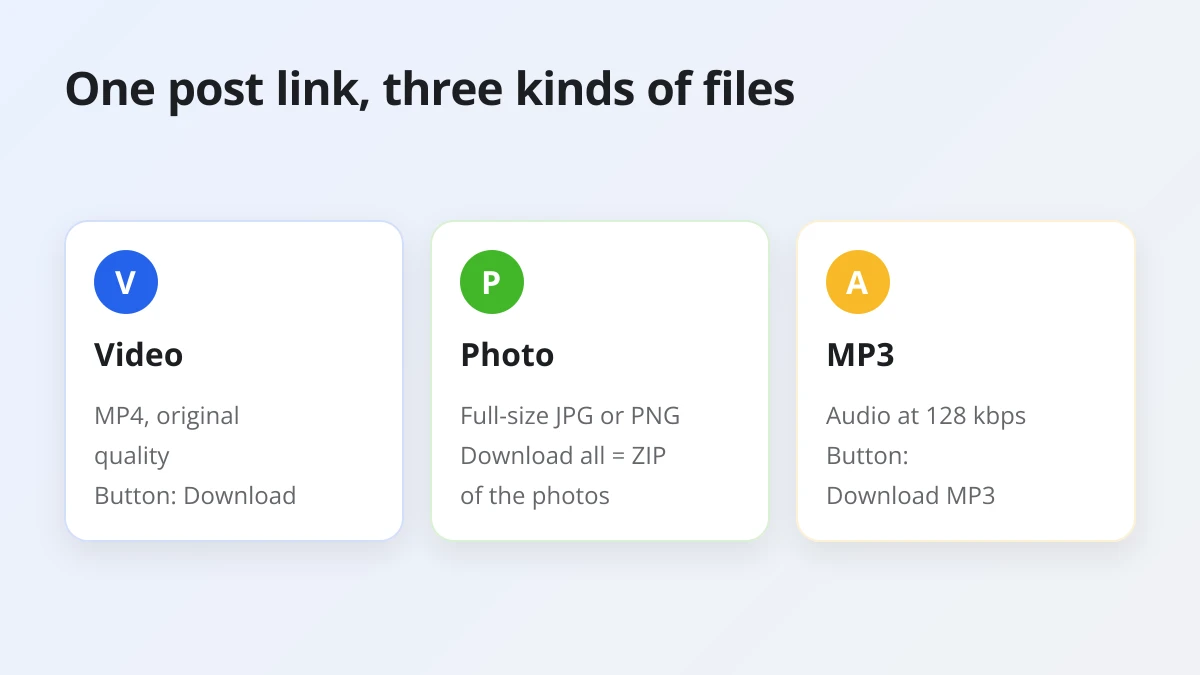
The same link also gives you the rest of the post. Photos come down at full size as the original JPG or PNG, a post with several photos offers Download all as one ZIP, and every video or voice clip has a Download MP3 button for the sound alone.
Below, you will see how to check that your setup is ready, the exact steps on a computer, where Windows and macOS put the files, how to pick a different download folder in each browser and what to do when a download refuses to start.
Can you download Threads videos on a PC without an extension?
Yes, you can download Threads videos on a PC without an extension, because Snapvn runs entirely in the browser, needs no login and installs nothing on your computer.
In other words, the browser itself is the whole toolkit. Snapvn is a web page, so it works the same on a Windows desktop, a laptop, a Mac or a Chromebook, as long as the browser is reasonably up to date.
Three things make this possible:
- Nothing to install. You never add a browser add-on or a desktop program. That keeps your browser clean and means there is nothing to update or remove later.
- No sign-in on Snapvn. You do not create an account or connect your Threads profile. Snapvn reads the public post from its link, so your login details never leave Threads.
- Free with no daily cap. Every video, photo and MP3 from a public post costs nothing, and there is no payment step.
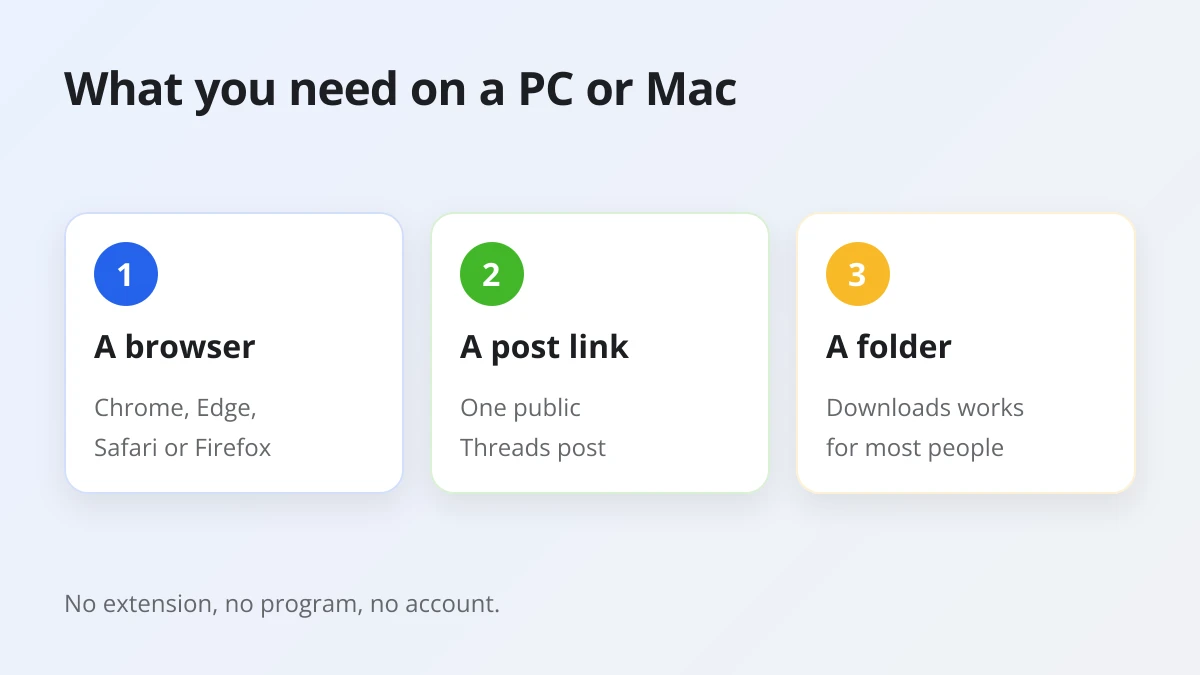
Before you start, have three things ready: a browser, the link to one public Threads post, and a folder on your computer where the file can land. The Downloads folder works fine for most people, and you can change it later if you prefer another spot.
One limit matters here. Snapvn only reads public posts. Posts from private accounts are meant for the followers the owner approved, so Snapvn declines them instead of trying to get around that.
How do you download a Threads video on PC or Mac?
To download a Threads video on PC or Mac, copy the post link on threads.com, paste it on Snapvn, press Download, then save the MP4 from its card. The file lands in your browser's download folder.
Next, here is each step in detail, with the exact button names you will see on screen.
Step 1: Copy the post link on threads.com
Copy the link of the single post that holds the video, either from the Share arrow under the post or from the browser's address bar after you open the post.
To clarify, there are two easy ways to get it on a computer:
- From the Share arrow. Find the post on threads.com, click the Share arrow under it and choose Copy link.
- From the address bar. Click the post so it opens on its own page, then select the address at the top of the browser and copy it with Ctrl+C on Windows or Command+C on a Mac.
A working post link looks like https://www.threads.com/@username/post/.... It must point to one post. A link to a profile page lists many posts at once, so Snapvn rejects it and asks for the link of the post itself.
Step 2: Paste the link on Snapvn
Open Snapvn in a new tab, click Paste to drop the link into the box, then press Download to load the post.
The first time you click Paste, your browser may ask whether Snapvn can read the clipboard. Allow it, or simply click inside the box and press Ctrl+V on Windows or Command+V on a Mac. Both give the same result.
After you press Download, Snapvn loads the public post and lists every file in it. Each video and each photo appears as its own card with a preview, so you can see what you are saving before anything reaches your disk.
Step 3: Save the MP4 from the result card
Press Download on the card of the video you want, and the browser saves it as an MP4 file in your download folder.
In practice, the MP4 keeps the original quality Threads serves. Snapvn does not re-encode the video and adds no watermark of its own. It also cannot make a video sharper than the creator uploaded it, because no tool can raise a video above its original resolution.
Download links expire after a short while. If a card's button stops working because you left the tab open for a long time, paste the post link again and press Download to get fresh links.
How do you save Threads photos and MP3 audio on a computer?
You save Threads photos and MP3 audio from the same post link: press Download on a photo card, Download all for every photo as one ZIP, or Download MP3 for the sound only.
Beyond the video itself, the result list covers everything else in the post. The picture below sums up which button saves which kind of file.
Photos and carousels
Each photo in a post has its own Download button that saves the original JPG or PNG at full size, not a compressed preview.
When a post holds several photos, Snapvn also shows a Download all button. It bundles all the photos into one ZIP file, which is handy on a computer because you can unzip it straight into a folder. Keep in mind that the ZIP contains photos only. If the same post also has a video, save that video from its own card.
On Windows, double-click the ZIP and choose to extract it. On a Mac, double-clicking the ZIP in Finder unpacks it next to the original file.
MP3 from videos and voice posts
Every video and voice clip card has a Download MP3 button that extracts the audio at 128 kbps and saves it as an MP3 file.
For example, this is useful when a post is mostly talk, a song snippet or a voice note you want to play back later without the picture. The MP3 lands in the same download folder as your videos. Snapvn prepares the file, sends it to you and then deletes its temporary copy, so nothing stays on its servers.
Does downloading Threads videos work the same in Chrome, Edge, Safari and Firefox?
Yes. Downloading Threads videos works the same in Chrome, Edge, Safari and Firefox, because the steps happen on the Snapvn page; only the place where each browser shows finished downloads differs.
However, each browser has its own way of telling you a file is done. The following table shows where to look once you press Download on a card.
| Browser | Where finished downloads appear | Where the file is saved by default |
|---|---|---|
| Chrome | Download icon at the top right, next to the address bar | Downloads folder |
| Edge | Downloads button in the toolbar | Usually the Downloads folder |
| Safari (Mac) | Show Downloads button at the top right of the window | Usually the Downloads folder |
| Firefox | Downloads button in the toolbar | Usually the Downloads folder |
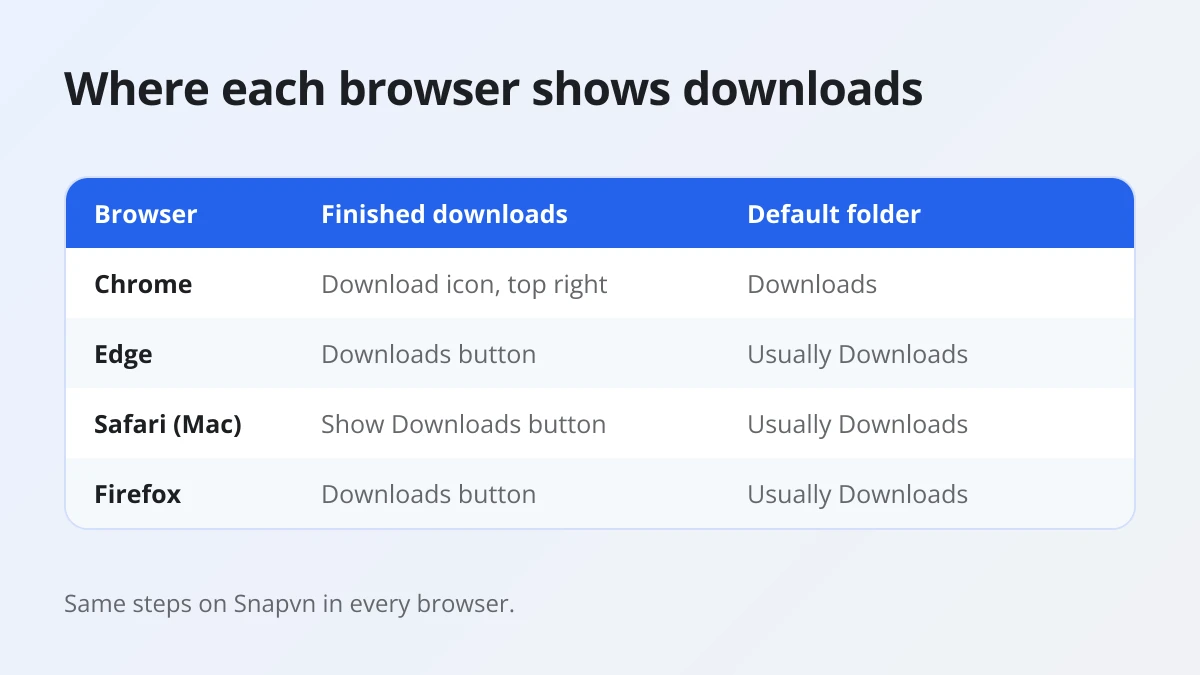
In short, there is no "best" browser for this job. Use the one you already have open. Apple notes that the Show Downloads button in Safari only appears once the downloads list has something in it, so do not worry if it is missing before your first file.
Where do downloaded Threads videos go on Windows and Mac?
Downloaded Threads videos go to your browser's download folder, which is the Downloads folder in your user account on both Windows and Mac unless you changed it.
To be specific, Google lists these default paths for Chrome, and the other browsers normally use the same folder. The table below shows where to look on each system.
| System | Default folder path | How to open it |
|---|---|---|
| Windows 10 and later | \Users\your-name\Downloads | File Explorer, Downloads |
| macOS | /Users/your-name/Downloads | Finder, Downloads |
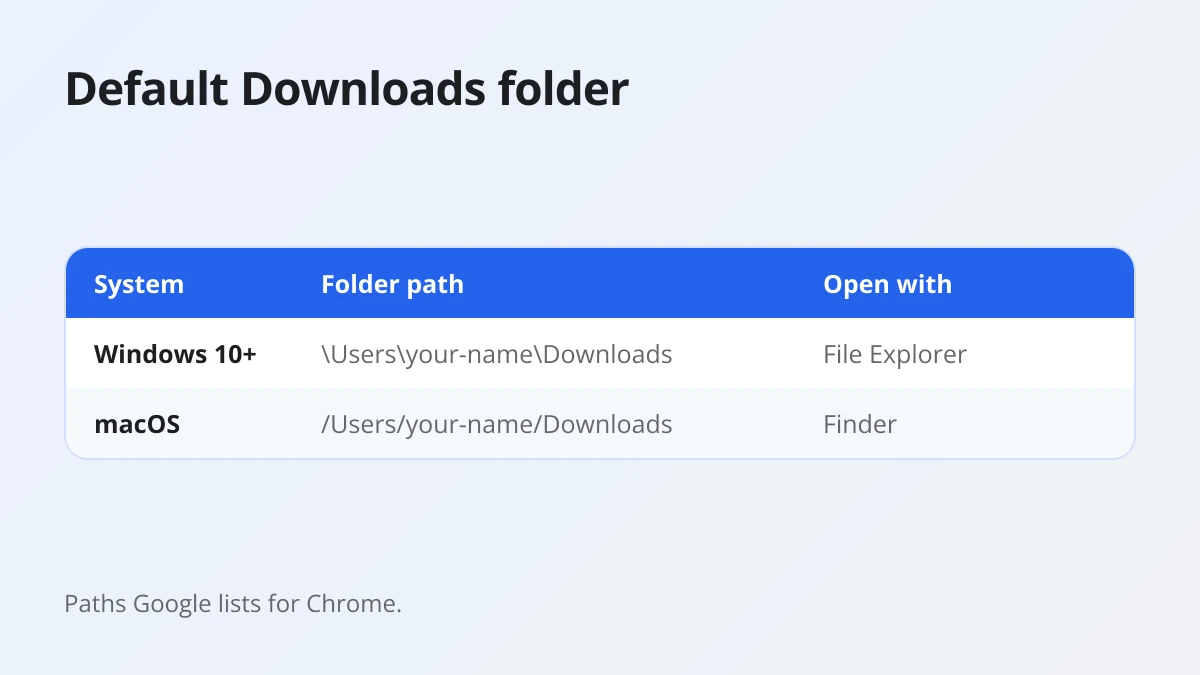
The quickest route is usually the browser itself. Click the download icon or the downloads list, then use the option to show the file in its folder. That opens File Explorer or Finder with the MP4 already selected, which is faster than browsing for it.
Once the video is on your computer, you can play it in any media player that handles MP4, such as the Photos or Media Player app on Windows or QuickTime Player on a Mac. MP3 files open in any music player, and ZIP files of photos unpack into ordinary image files.
How do you change the download folder in your browser?
You change the download folder in your browser's settings: open Settings, go to the Downloads section, choose a new folder, or turn on the option that asks where to save each file.
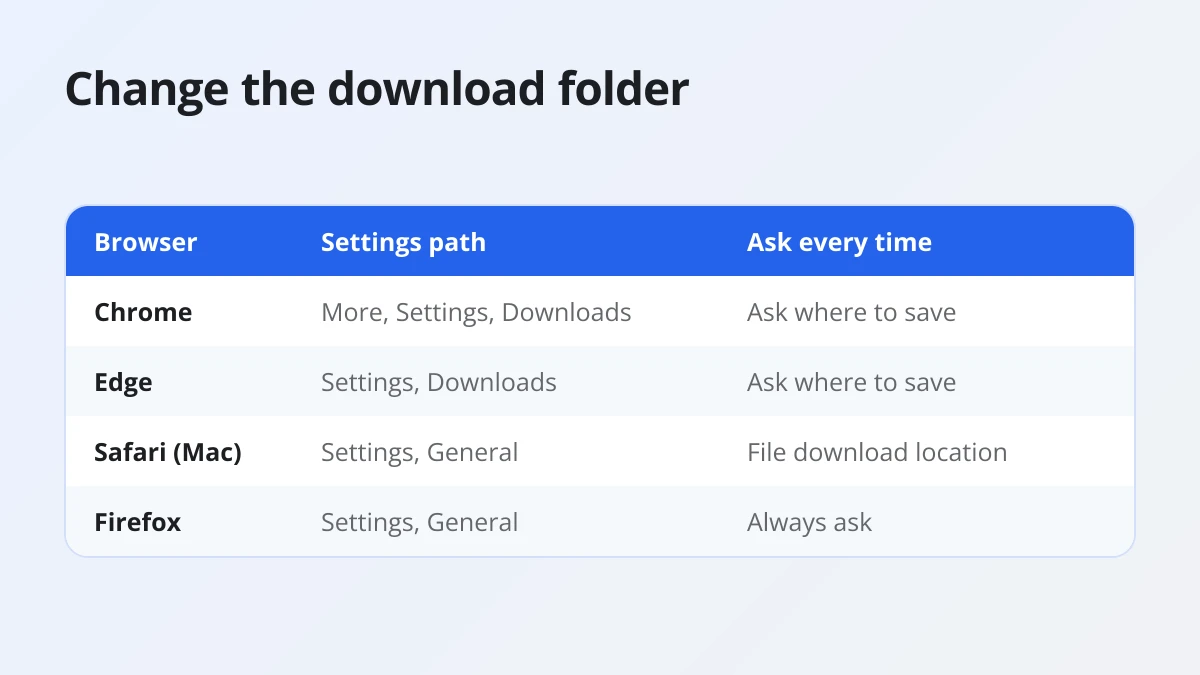
Here is the path in each browser. The table sums them up, and the sections after it give the details.
| Browser | Settings path | Ask every time option |
|---|---|---|
| Chrome | More, Settings, Downloads, Change | Ask where to save each file |
| Edge | Settings and more, Settings, Downloads | Ask where to save each file |
| Safari (Mac) | Safari, Settings, General | File download location: Ask |
| Firefox | Menu, Settings, General, Downloads | Always ask where to save files |
Chrome and Edge
In Chrome, click More (the three dots at the top right), then Settings, then Downloads, and click Change next to the location to pick a new folder.
Microsoft Edge works almost the same way. Open Settings and more, choose Settings, select Downloads and click Change in the Location area. Both browsers also offer a switch that asks where to save each file before downloading, which is useful if you want Threads videos in one folder and work files in another. The Chrome Help page on downloads covers the same options.
Safari on Mac
In Safari on a Mac, choose Safari in the menu bar, then Settings, then General, and use the File download location pop-up menu to choose a folder.
The same pop-up menu can be set to ask you every time, so Safari shows a save dialog for each file. Apple describes these steps in its Safari guide to downloading items.
Firefox
In Firefox, open the menu button, choose Settings, stay on the General panel and find the Downloads section under Files and Applications.
From there, click the button next to Save files to and select a new folder. If you would rather decide each time, pick the option that always asks where to save files instead.
Why won't a Threads video download on your computer?
There are four main reasons a Threads video won't download on a computer: the link points to a profile, the post is private or deleted, the download link expired, or the browser blocked the file.
Fortunately, each one has a quick fix. The picture below matches every problem with its solution.
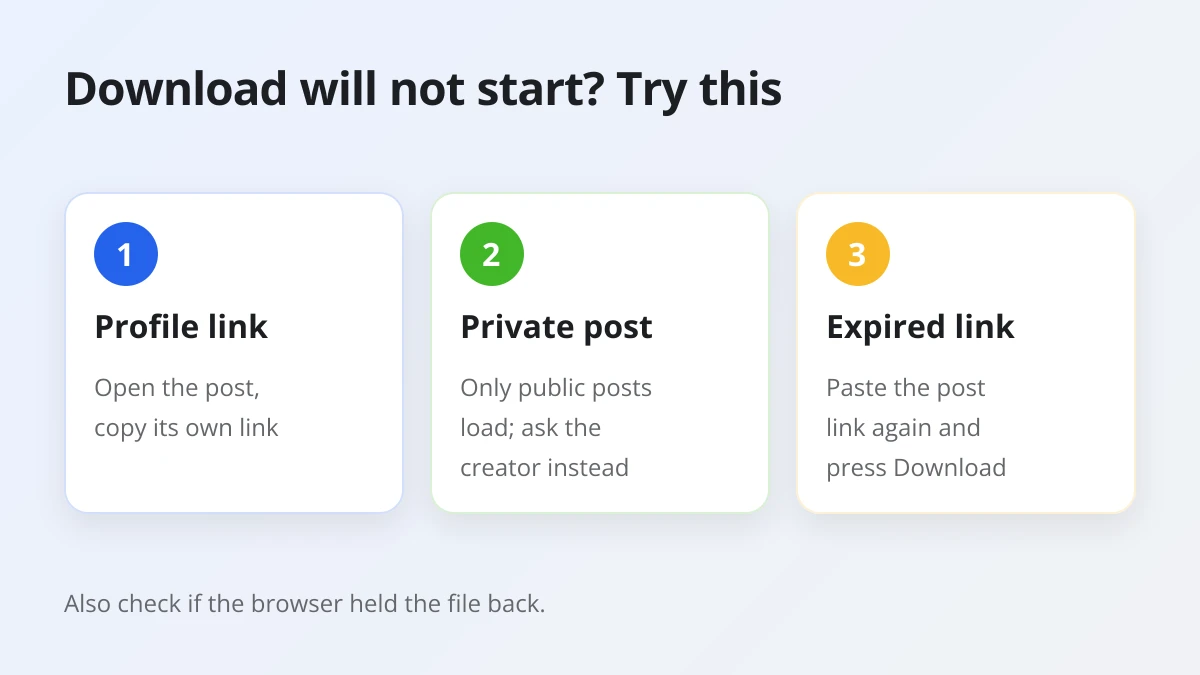
- The link is not a single post. If you see "Only public Threads post links are supported. Copy the link from the post's Share button.", you probably copied a profile link or something other than a post. Open the post itself and copy its link again.
- The post is private or gone. Snapvn shows "This post is private and cannot be downloaded. Try a public Threads post." for private accounts. A deleted post cannot load either. Ask the creator to send you the file if you really need it.
- The download link expired. Links behind the Download buttons only last a short while. Paste the post link again and press Download to refresh them.
- The browser held the file back. Some browsers pause downloads they consider unusual or ask for confirmation. Check the downloads list and choose to keep the file, or allow downloads for the site if your browser asks.
Finally, remember whose content it is. Saving a public post for personal, offline viewing is generally accepted, but the video still belongs to the person who posted it. Ask for permission and give credit before you repost, edit or use it commercially. Snapvn is not affiliated with Threads, Instagram or Meta.
How does saving Threads videos on a computer compare with a phone?
Saving Threads videos works the same way on a computer and a phone: copy the post link, paste it on Snapvn and press Download. What changes is where the file lands and how you open it.
What changes on iPhone and Android?
On a phone you copy the link inside the Threads app instead of the browser, and the file goes to the phone's storage rather than a desktop Downloads folder.
On iPhone, Safari puts downloads in the Files app, and you can move a video to Photos afterward. Our full iPhone walkthrough shows each tap, from copying the link to finding the file. On Android, Chrome or another browser saves to the Downloads folder, where the gallery can pick it up. The guide to saving Threads videos on Android explains where to look on different phones.
Is there a quicker routine for iPhone users?
Yes. iPhone users who save Threads videos often can cut the steps down with Safari and Apple's built-in Shortcuts app.
For instance, a shortcut that opens Snapvn straight away, or Snapvn pinned to the Home Screen, removes the hunt for the page each time. The faster iPhone routine with Safari and Shortcuts explains how to set one up yourself. On a computer, a simple browser bookmark to Snapvn does the same job.