Yes, you can have a Threads video download shortcut on iPhone, and you can build it yourself in a few minutes with Apple's Shortcuts app. It opens Snapvn, a free Threads downloader, in Safari with one tap, so you skip typing the address every time you want to save a clip.
There are three ways to set it up, from simplest to most flexible. You can pin Snapvn to the Home Screen or to Safari favorites, build a small shortcut that opens Snapvn, or make that shortcut appear in the share sheet so it also catches the link you share.
None of these options needs a shortcut file from the internet or an iCloud link from a stranger. You create every action yourself with the tools Apple already puts on the iPhone, so you can see exactly what the shortcut does before you run it.
Next, this guide walks through each setup and the routine you will use every day. It assumes you already know the basic steps on Snapvn, which are copying the post link, tapping Paste and tapping Download.
Is there a Threads video download shortcut for iPhone?
Yes. A Threads video download shortcut for iPhone is something you build yourself in Apple's Shortcuts app, because it uses built-in actions only, opens Snapvn in Safari and needs no file to install.
To be clear about what it does, the shortcut shortens the part of the routine that wastes the most time: opening Safari and getting to the right page.
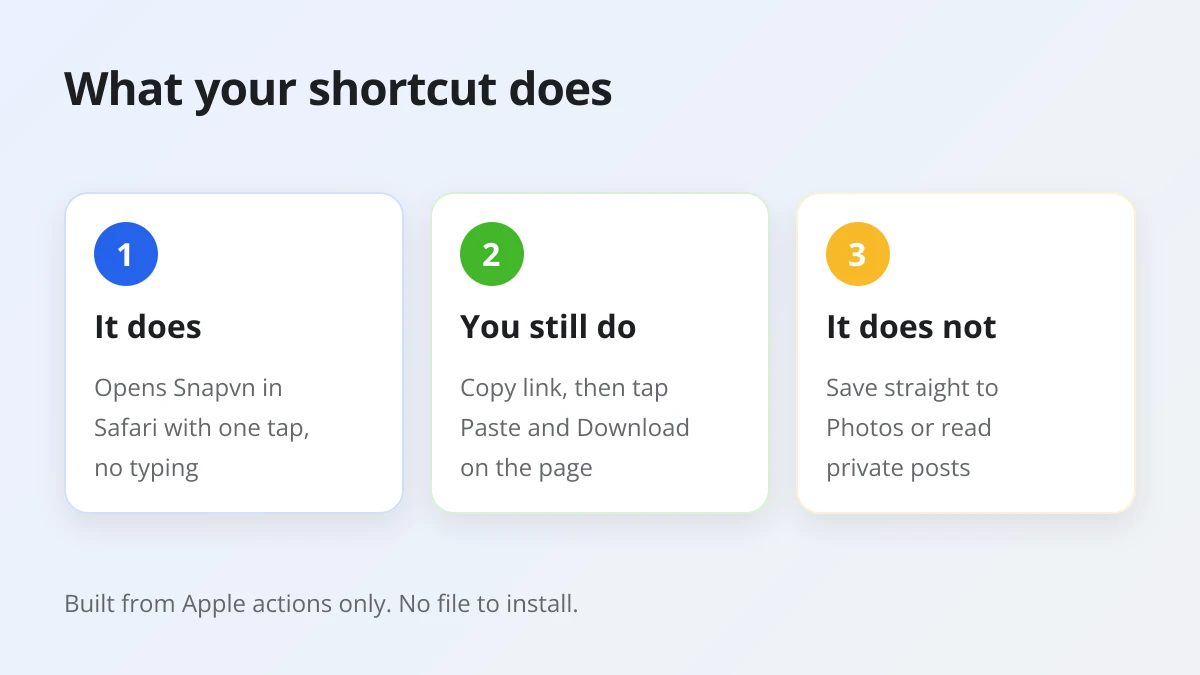
Here is what you get from building it yourself:
- It opens Snapvn in one tap. You run the shortcut from the Home Screen, from the back of the phone or from the share sheet, and Safari opens on Snapvn straight away.
- You can read every action. The shortcut holds two or three actions you added by hand. Nothing runs in the background, and nothing is sent to a service you did not choose.
- It costs nothing. The Shortcuts app ships with the iPhone, and Snapvn is free with no daily cap, no account and no payment.
There is also a limit to keep in mind. Snapvn has no address that fills in the link for you, so the shortcut cannot paste the post on its own. You still tap Paste and then Download on the page. In practice that is two taps, and the shortcut already removes the slow part before them.
Which iPhone shortcuts can speed up saving Threads videos?
There are three main iPhone shortcuts for saving Threads videos faster: a Safari Home Screen icon or favorite, a Shortcuts app shortcut that opens Snapvn, and a share sheet shortcut that also copies the link.
Each one builds on the previous option, so you can stop at the level that fits how often you download.
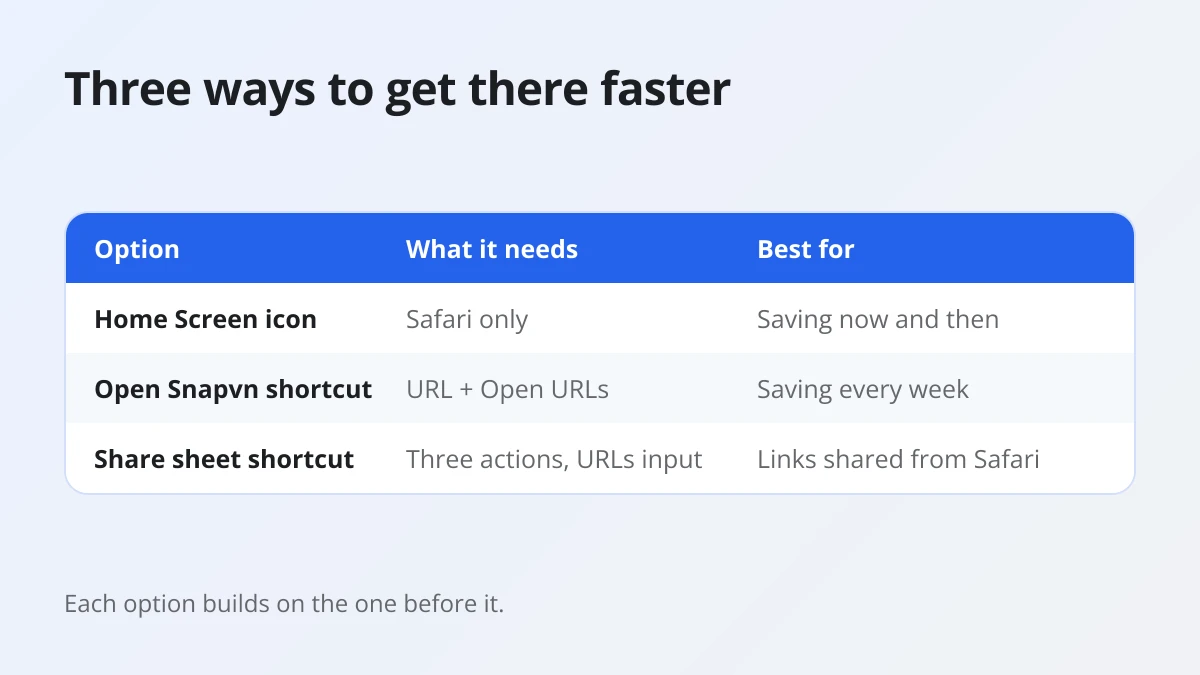
The table below compares the three options by what they need and who they suit best.
| Option | What it needs | Best for |
|---|---|---|
| Home Screen icon or favorite | Safari only, about one minute | Saving a video now and then |
| Shortcut that opens Snapvn | Shortcuts app, two actions | Saving videos every week |
| Share sheet shortcut | Shortcuts app, three actions and input settings | Saving links you share from Safari or other apps |
The Home Screen icon is the quickest win, because it needs no Shortcuts knowledge at all. The shortcut that opens Snapvn adds more ways to run it, such as Back Tap or the Action button. The share sheet version is the most flexible, since it copies the link you share and then opens Snapvn, ready for Paste.
How do you add Snapvn to the Home Screen or Safari favorites?
You add Snapvn to the Home Screen or to favorites from the Page Menu in Safari. Both take under a minute and give you a one tap way to reach the page.
To get started, open Safari and go to snapvn.com, the page with the Threads link box. Then choose one of the two options below.
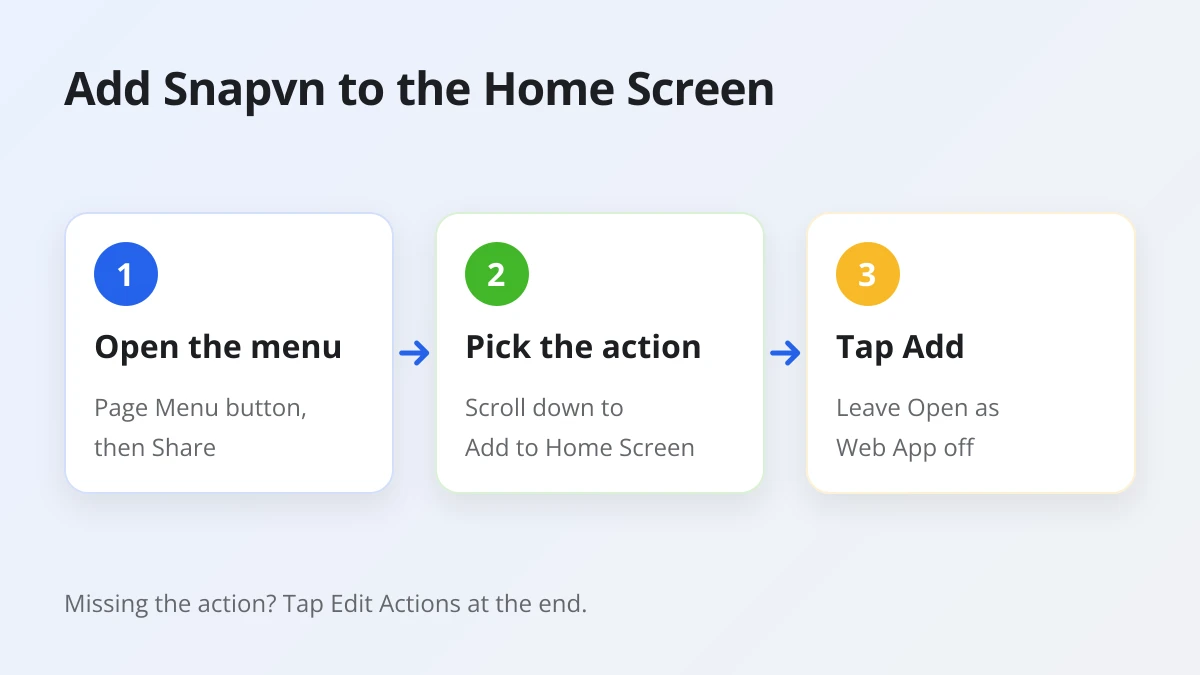
Add a Snapvn icon to the Home Screen
Tap the Page Menu button, tap Share, scroll down and tap Add to Home Screen, then tap Add. An icon for Snapvn appears on your Home Screen.
If your Safari tabs sit at the bottom or top of the screen, tap the Share button directly instead of the Page Menu. If Add to Home Screen is missing from the list, scroll to the end, tap Edit Actions and add it there.
The same screen shows an Open as Web App switch, which opens the site as if it were an app. We suggest leaving it off for this routine. That way the icon opens Snapvn in regular Safari, with the address bar and the Downloads button that the basic steps rely on. Keep in mind that the icon only appears on the iPhone where you add it, as Apple notes in its guide to bookmarking a website in Safari on iPhone.
Keep Snapvn in Safari favorites
Tap the Page Menu button, tap Add Bookmark to, choose a location such as your favorites, then tap Save. Snapvn now sits in your bookmarks, a tap away whenever Safari is open.
With tabs at the bottom or top, touch and hold the Show Bookmarks button and tap Add Bookmark instead. Recent bookmarks and favorites appear at the top of the bookmarks screen, so the page is easy to find again.
Favorites suit people who already live in Safari. The Home Screen icon suits people who start from the Threads app and want to jump across in one move.
How do you build a shortcut that opens Snapvn in Safari?
You build it in the Shortcuts app with two actions: a URL action that holds the Snapvn address and an Open URLs action that opens it in Safari. The finished shortcut takes about two minutes to make.
Follow these steps once, and the shortcut is ready for every future download.
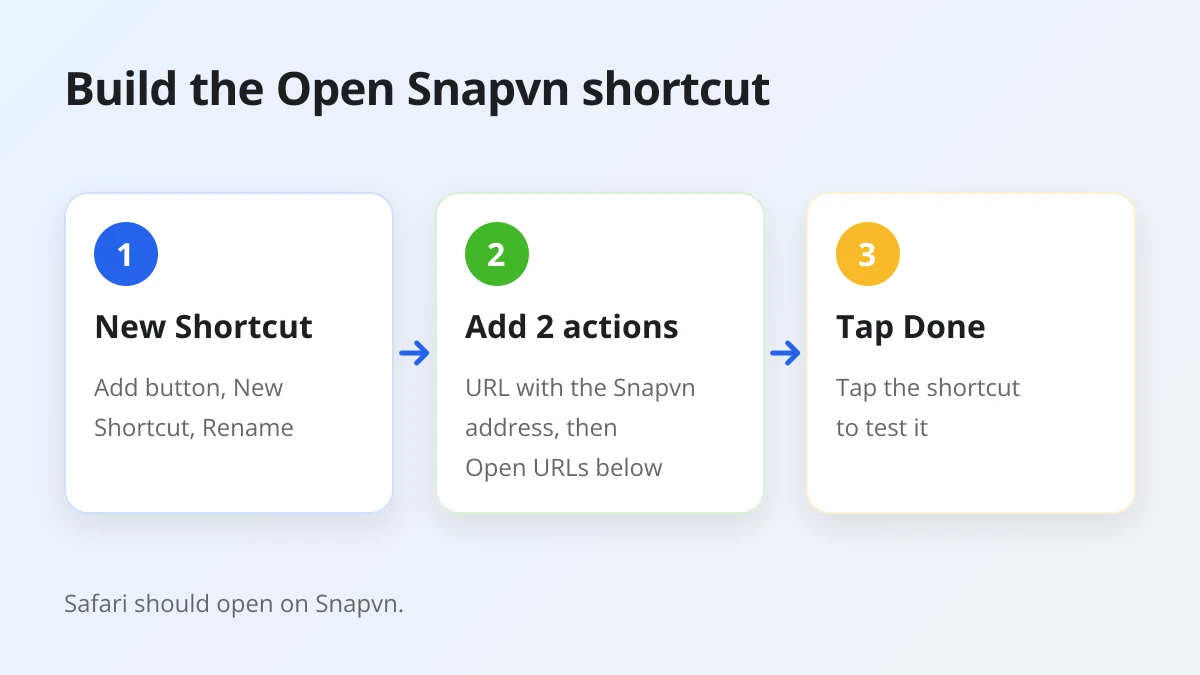
- Open the Shortcuts app and tap the Add button. An empty shortcut opens in the editor.
- Tap New Shortcut, tap Rename and give it a clear name, for example "Save Threads".
- Tap Add Action, open the Web category and choose URL. Type
https://snapvn.comin its field. - Swipe up on the search field at the bottom, search for "open" and add Open URLs below the URL action.
- Tap Done, then tap the shortcut once to test it. Safari should open on Snapvn.
The order matters here. The URL action passes the address down to Open URLs, which opens the links it receives in Safari. If Safari does not open, check that the address starts with https and that Open URLs sits below URL in the editor. Apple's page on creating a custom shortcut shows the editor and the action list in more detail.
Where can you run the shortcut from?
You can run the shortcut from three handy places besides the Shortcuts app: the Home Screen, a double or triple tap on the back of the iPhone, and the Action button on supported models.
- Home Screen. In the Shortcuts app, open the shortcut, tap the Details button and choose Add to Home Screen. You can change the name and icon, then tap Add.
- Back Tap. Go to Settings, then Accessibility, then Touch, and select Back Tap. Pick Double Tap or Triple Tap and choose your shortcut from the Shortcuts area.
- Action button. On iPhone 15 Pro or later, go to Settings, then Action Button, swipe to Shortcut, tap Choose a Shortcut and select it.
Back Tap is the fastest of the three. You copy the link in Threads, tap the back of the phone twice, and Snapvn is already open.
How do you send a Threads link to the shortcut from the share sheet?
You turn on Show in Share Sheet for the shortcut, limit its input to URLs and add a step that copies the shared link to the clipboard. Sharing a link then opens Snapvn with that link ready for Paste.
This version takes a few more taps to set up, so follow the order below.
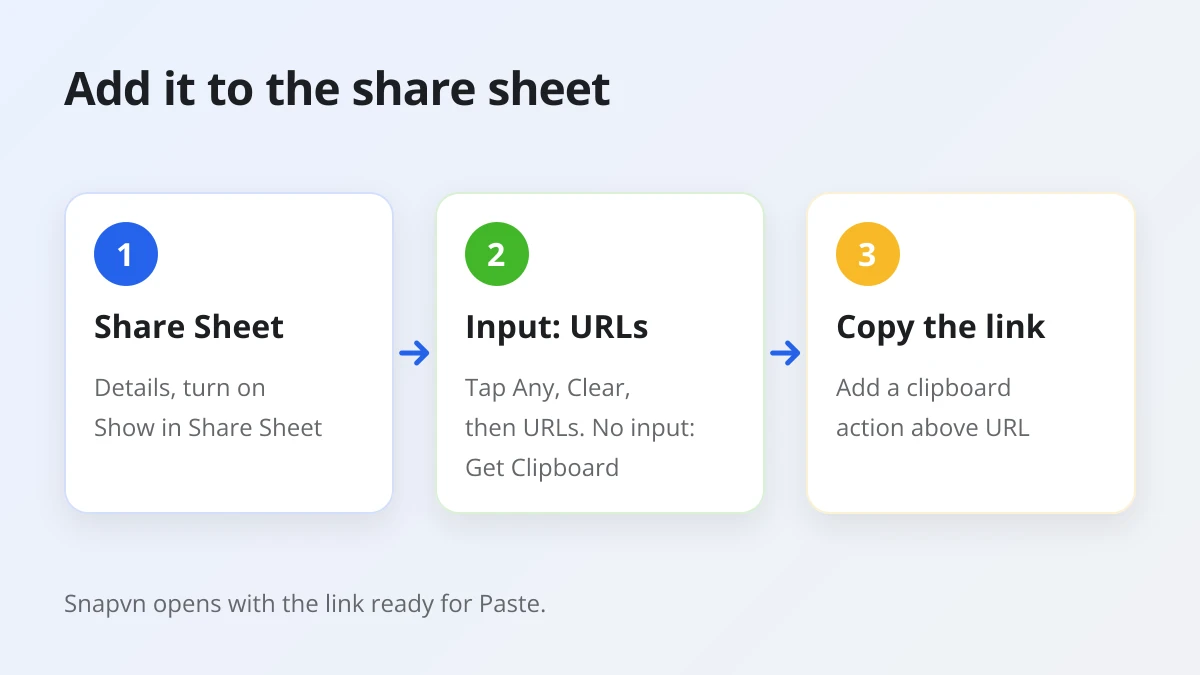
- Open the shortcut in the editor, tap the Details button and turn on Show in Share Sheet, then tap Done. A new input action appears at the top of the shortcut.
- Tap Any in that input action, tap Clear and turn on URLs only. The shortcut now shows up only where a link is shared.
- In the same input action, tap Continue, the setting for what happens when there is no input, and choose Get Clipboard. The shortcut then keeps working when you run it from the Home Screen.
- Search the action list for "clipboard" and add the action that copies its input to the clipboard. Drag it directly below the input action, above URL.
Now the flow works like this. You share a post link, the shortcut puts that link on the clipboard, and Open URLs opens Snapvn in Safari. You only tap Paste and Download. The first time a shortcut reads or writes the clipboard, the iPhone may ask for permission, so allow it.
Where you share from matters. Safari has its own Share button, and a shortcut that accepts URLs shows up when you share a page from Safari, so a Threads post opened in Safari is the safest starting point. The share menu inside the Threads app varies between versions. If it offers the iPhone share sheet, your shortcut appears in the list. If not, use Copy link and run the shortcut from the Home Screen or with Back Tap.
What does the faster routine look like day to day?
The faster routine takes four moves: copy the post link in Threads, run your shortcut, tap Paste and tap Download. Safari then saves the MP4 just as it does without a shortcut.
In practice, a typical save looks like this:
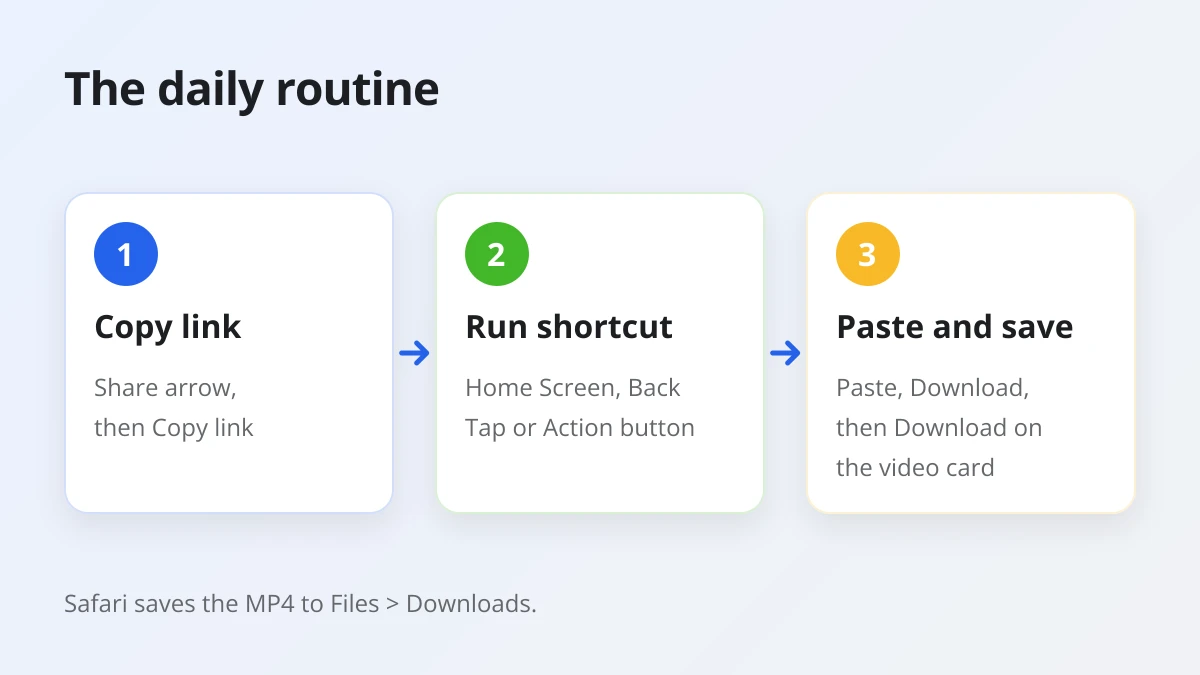
- In the Threads app, tap the Share arrow under the post and choose Copy link.
- Run the shortcut with your Home Screen icon, Back Tap or the Action button.
- On Snapvn, tap Paste, then press Download.
- Tap Download on the video card. Use Download MP3 if you only want the sound.
The video arrives as an MP4 in the original quality Threads serves, with no watermark added and nothing re-encoded. Safari keeps it in the Downloads folder of the Files app, not in Photos. To find the file, move it into Photos or save the photos of a carousel, follow the complete iPhone guide to saving Threads videos, which covers every step after the download.
What should you check when the shortcut opens Snapvn but nothing loads?
When the shortcut opens Snapvn but nothing loads, the cause is usually an empty clipboard, a profile link, a private account or an expired download link. The shortcut itself is rarely at fault.
The table below matches each symptom with its fix.
| What you see | Likely cause | Fix |
|---|---|---|
| The box stays empty after Paste | Nothing was copied, or paste was not allowed | Copy the link again, or touch and hold the box and paste it by hand |
| "Only public Threads post links are supported. Copy the link from the post's Share button." | A profile link instead of a post link | Copy the link from the Share arrow of the post itself |
| "This post is private and cannot be downloaded. Try a public Threads post." | The account is private | Ask the creator to send you the file |
| A Download button stops working | The download link expired | Paste the post link again to load fresh links |
If Safari opens a different page, edit the shortcut and check the address in the URL action. Remember that every video belongs to the person who posted it. Save public posts for personal, offline viewing, and ask permission and give credit before you repost anything. Snapvn is not affiliated with Threads, Instagram or Meta.
What can an iPhone shortcut not do for Threads videos?
An iPhone shortcut built this way cannot download a video by itself, cannot read private posts and cannot skip the Paste and Download taps. It only removes the trip to the right page.
Can a shortcut save Threads videos straight to Photos?
No, not with this routine. Your shortcut opens Snapvn, and Safari saves the MP4 to Files, so moving it into Photos is still a manual step with Share and Save Video.
Some shortcut files shared online claim to save videos straight to the photo library. They depend on services and code you cannot easily inspect, and they can stop working when Threads changes. Building your own keeps every action visible, and the extra step into Photos takes only a few seconds.
Does the same routine work for Threads photos and voice posts?
Yes. The shortcut only opens Snapvn, so everything the page offers works the same way after you tap Paste.
Photo cards have their own Download button that saves the original JPG or PNG at full size. Posts with several photos also show Download all, which bundles the photos into one ZIP file, while videos still download from their own cards. Voice posts and videos have Download MP3, which extracts the audio at 128 kbps.